Building the Paddle
In this section, we will create a Paddle class that extends Sprite and responds to arrow key presses.
Creating the Paddle Class
Create a new file src/model/paddle.js with the following content:
import Sprite from "./sprite.js";

class Paddle extends Sprite {
  constructor(x, y, width, height, color) {
    super(x, y, width, height, color, 0, 0);
    this.displacement = 7;
    document.addEventListener("keydown", this.keyDownHandler.bind(this));
    document.addEventListener("keyup", this.keyUpHandler.bind(this));
  }

  keyDownHandler(e) {
    if (e.key === "ArrowRight") {
      this.dx = this.displacement;
    } else if (e.key === "ArrowLeft") {
      this.dx = -this.displacement;
    }
  }

  keyUpHandler(e) {
    if (e.key === "ArrowRight") {
      this.dx = 0;
    } else if (e.key === "ArrowLeft") {
      this.dx = 0;
    }
  }
}

export default Paddle;
The constructor calls super with zero velocity so the paddle starts stationary. We set a displacement value of 7. This controls how fast the paddle moves when a key is held down.
Handling Keyboard Input
keyDownHandler fires when you press a key. If the pressed key is the left or right arrow, we set this.dx to move the paddle in that direction. When you release the key, keyUpHandler resets this.dx to 0, stopping the motion.
Also notice the .bind(this) calls when registering the event handlers. Recall from the Todo app that when you pass a method as a callback to addEventListener, this loses its original binding and instead points to the element that fired the event. Calling .bind(this) sets each handler’s this to the Paddle instance, so this.dx and this.displacement resolve correctly.
Wiring the Paddle into the Game
Update src/main.js to import the paddle:
import Paddle from "./model/paddle.js";
Then create the paddle:
const paddle = new Paddle(
  (canvas.width - 75) / 2,
  canvas.height - 10,
  75,
  10,
  "#0095DD",
);
Then inside the draw function, add calls to render and move the paddle:
paddle.draw(ctx);
paddle.move();
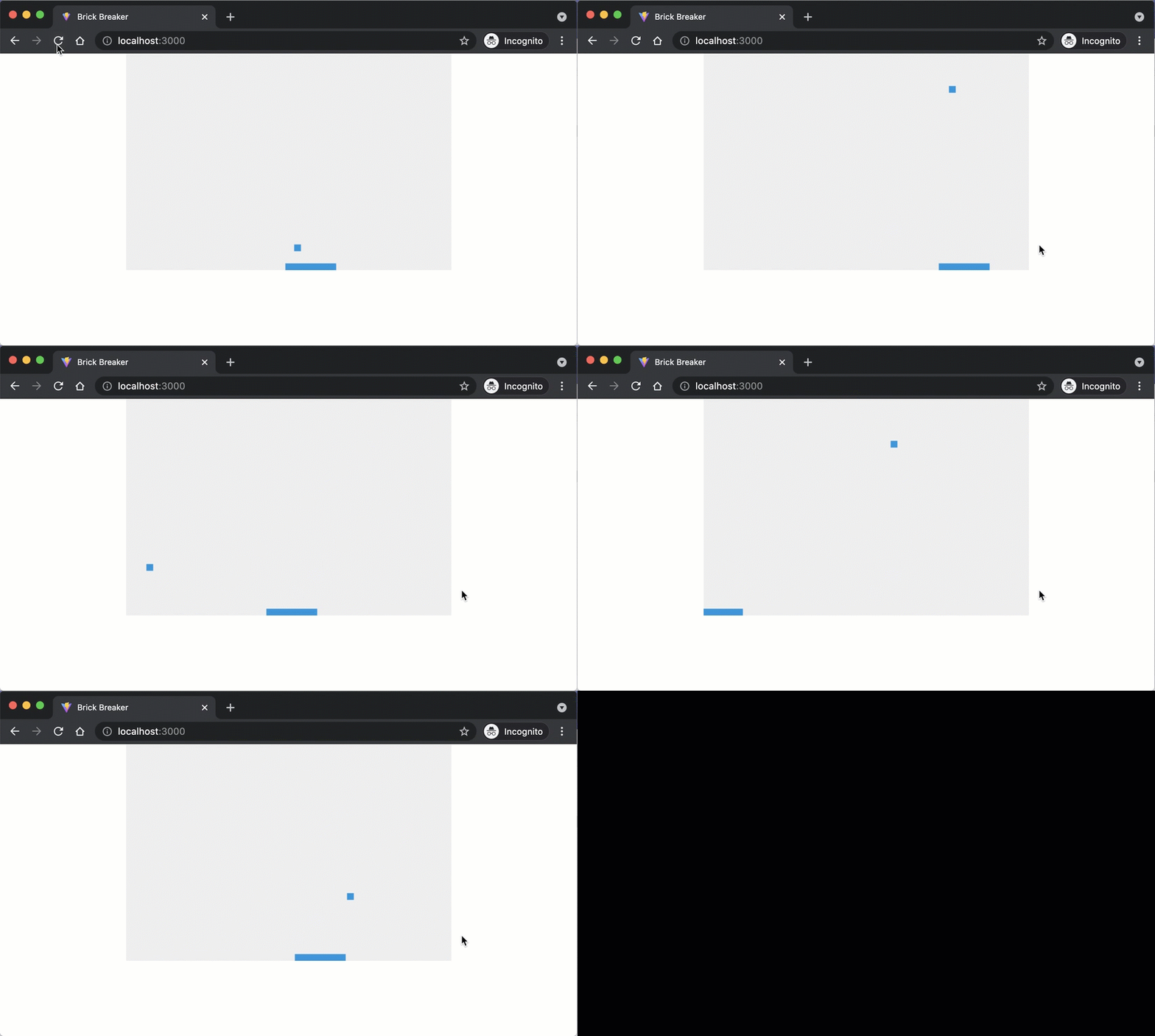
Save your code and check the browser. You should see a paddle at the bottom of the canvas that slides left and right with the arrow keys.
Checkpoint: Commit your progress.
git add .
git commit -m "brick-09: Add keyboard-controlled paddle"
git push