Define the Schema
In this section, we will define a schema for our tasks in the Convex database. A schema describes the shape of your data (think of it like TypeScript types or interfaces that define the shape of an object). Before we do that, we need to talk about what a database is and why we need one.
Why We Need a Database
So far our app has stored its data in the browser using localStorage. That means only one user on one device can see the data. Open the app in another browser and the data is not there.
A database is a collection of data organized according to some database model to facilitate efficient storage and retrieval of data. The data itself is often stored on disk outside of your application, so it persists across sessions. A database management system (DBMS) provides an interface for interacting with the database. For simplicity, we will just say “database” to refer to the database, the database model, and the DBMS together.
There are many database systems out there (PostgreSQL, MongoDB, etc.). Convex gives you a database as part of its platform. This database is hosted in the cloud and is accessible from any device, so your kanban board can be shared and persistent across users and devices. For simplicity, we will refer to the Convex database as “the database” or “Convex” in this chapter.
Convex organizes data into tables. Think of a table like a spreadsheet where each row is a document (a JavaScript object storing a data record) and each column is a field (a property on that object). So a tasks table might hold many task documents, each with fields like title, description, and status.
Database Schema
A schema is a formal definition of the structure of your data. It describes what tables you have, what fields each table contains, and what types those fields are. A database typically uses a domain-specific language to define the schema. Convex lets you define your schema using TypeScript, which is a language you are already using for the frontend.
Convex provides a set of validator functions that you use to describe the shape of your data. From this schema, Convex gives you two things:
- Runtime validation — Convex rejects any data that does not match the schema. If you accidentally try to save a task without a
title, the operation fails immediately with a clear error. - TypeScript types — Convex generates types from your schema, so your editor knows the exact shape of every document. No manual type definitions are needed.
Create the Schema
Create convex/schema.ts:
import { defineSchema, defineTable } from "convex/server";
import { v } from "convex/values";

export default defineSchema({
  tasks: defineTable({
    title: v.string(),
    description: v.string(),
    status: v.union(
      v.literal("todo"),
      v.literal("in-progress"),
      v.literal("done"),
    ),
  }),
});
Let’s break this down:
defineSchematakes an object where each key is a table name. We have one table:tasks.defineTabledescribes the fields in that table using validators.vis the validator builder. It provides functions likev.string(),v.number(),v.boolean(), and more.
Validators
Validators define both the type and the constraints of each field:
v.string(): the field must be a stringv.number(): the field must be a numberv.boolean(): the field must be a booleanv.literal("value"): the field must be exactly this valuev.union(a, b, c): the field must match one of the given validatorsv.optional(v.string()): the field is optional (may be absent)v.id("tableName"): a reference to a document in another table (we will use this in a later chapter)
For the status field, we use v.union(v.literal("todo"), v.literal("in-progress"), v.literal("done")). This is the Convex equivalent of a TypeScript union type "todo" | "in-progress" | "done" — the field must be exactly one of those three strings.
System Fields
Every document (row) in Convex automatically gets two system fields that you do not need to define:
_id: a globally unique identifier (similar to theidwe manually create withcrypto.randomUUID())_creationTime: a timestamp of when the document was created (similar to ourcreatedAtfield)
Since Convex provides these automatically, we do not include id or createdAt in our schema.
Deploy the Schema
Run npx convex dev if it is not already running. Convex automatically detects the new file and deploys the schema. You should see output like:
✔ Schema validation complete.
✔ Convex functions ready!
You can also see your tables in the Convex dashboard. To view the dashboard, run npx convex dashboard in another terminal. Select “Data” from the sidebar. The dashboard shows your tasks table with its fields and no documents (rows) yet.
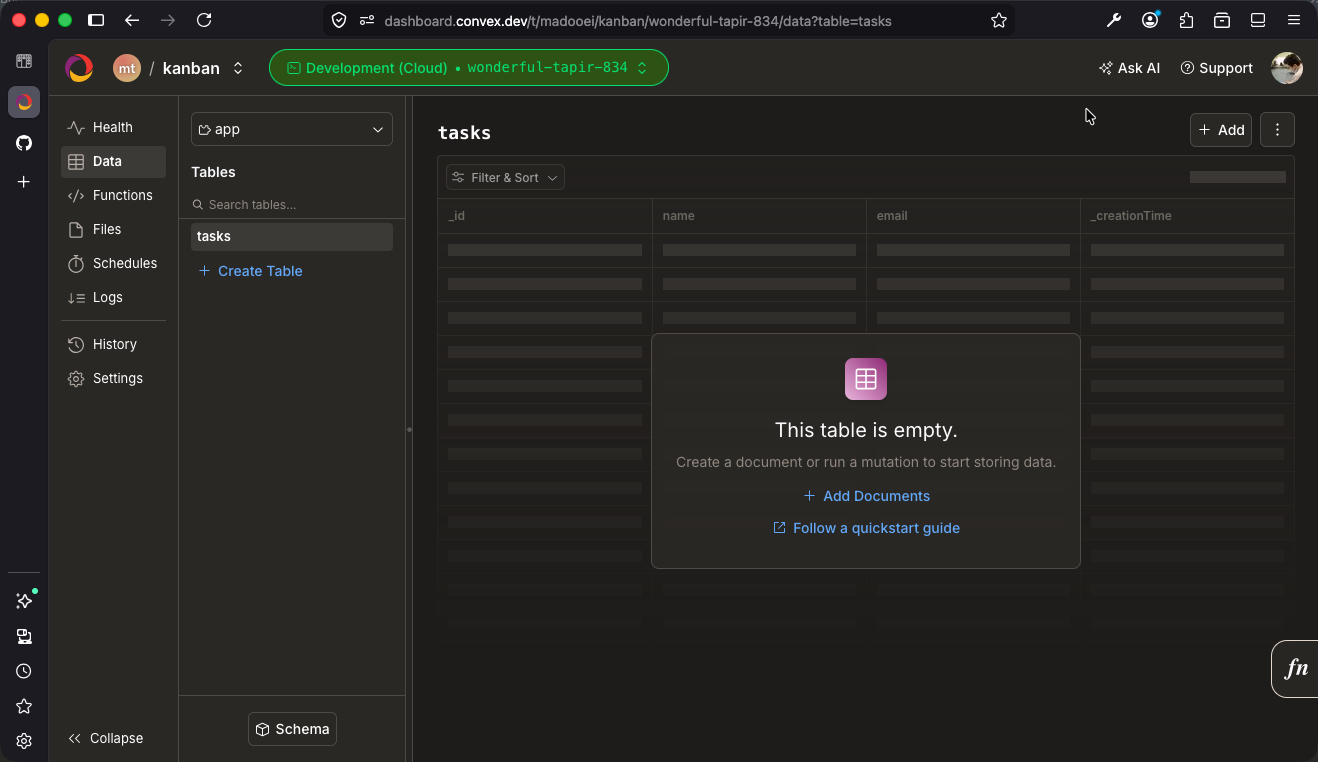
The tasks table exists but is empty — we will add data through mutations in a later section.
Checkpoint: Commit your progress.
git add .
git commit -m "kanban-03: Define the tasks schema"
git push