Explore the Starter App
Before we add new features, let’s understand what we are working with. The starter is a fully functional kanban board that stores tasks in the browser’s localStorage.
Project Structure
kanban-board/
├── index.html
├── package.json
├── vite.config.ts
└── src/
    ├── main.tsx
    ├── App.tsx
    ├── index.css
    ├── store/
    │   └── task-store.ts
    ├── components/
    │   ├── kanban-board.tsx
    │   ├── column.tsx
    │   ├── task-card.tsx
    │   └── add-task-dialog.tsx
    ├── components/ui/        ← shadcn/ui components
    └── lib/
        └── utils.ts          ← cn() utility
The files you will work with most are in src/store/ and src/components/. The components/ui/ directory contains pre-built shadcn/ui components (Button, Card, Dialog, etc.). You will not need to modify these.
The Task Store
Open src/store/task-store.ts. This is the data layer of the app.
export type TaskStatus = "todo" | "in-progress" | "done";

export type Task = {
  id: string;
  title: string;
  description: string;
  status: TaskStatus;
  createdAt: number;
};
Each task has an id, a title, a description, a status (which column it belongs to), and a createdAt timestamp.
The store is created with TanStack Store, the same library you used in the Shopping Cart tutorial:
export const taskStore = createStore<Task[]>(loadTasks());
The loadTasks() function reads from localStorage, falling back to sample tasks on the first load. A subscription takes care of saving. Whenever the store state changes, the new state is written to localStorage:
taskStore.subscribe(() => {
  localStorage.setItem(STORAGE_KEY, JSON.stringify(taskStore.state));
});
In the Shopping Cart, you called saveCart inside every mutation function. That works, but you have to remember to add the call every time you write a new mutation. The subscribe approach is cleaner. One subscription handles persistence for all current and future mutations.
The store exports four plain functions for modifying tasks:
addTask(title, description)— creates a new task with status"todo"updateTask(id, updates)— patches a task with partial updatesmoveTask(id, newStatus)— changes a task’s status (column)deleteTask(id)— removes a task
These are plain functions, not hooks. You can call them from anywhere — event handlers, callbacks, or other functions. Components that need to read the store use the useStore hook from @tanstack/react-store.
The Components
App.tsx renders the page layout — a header and the <KanbanBoard /> component.
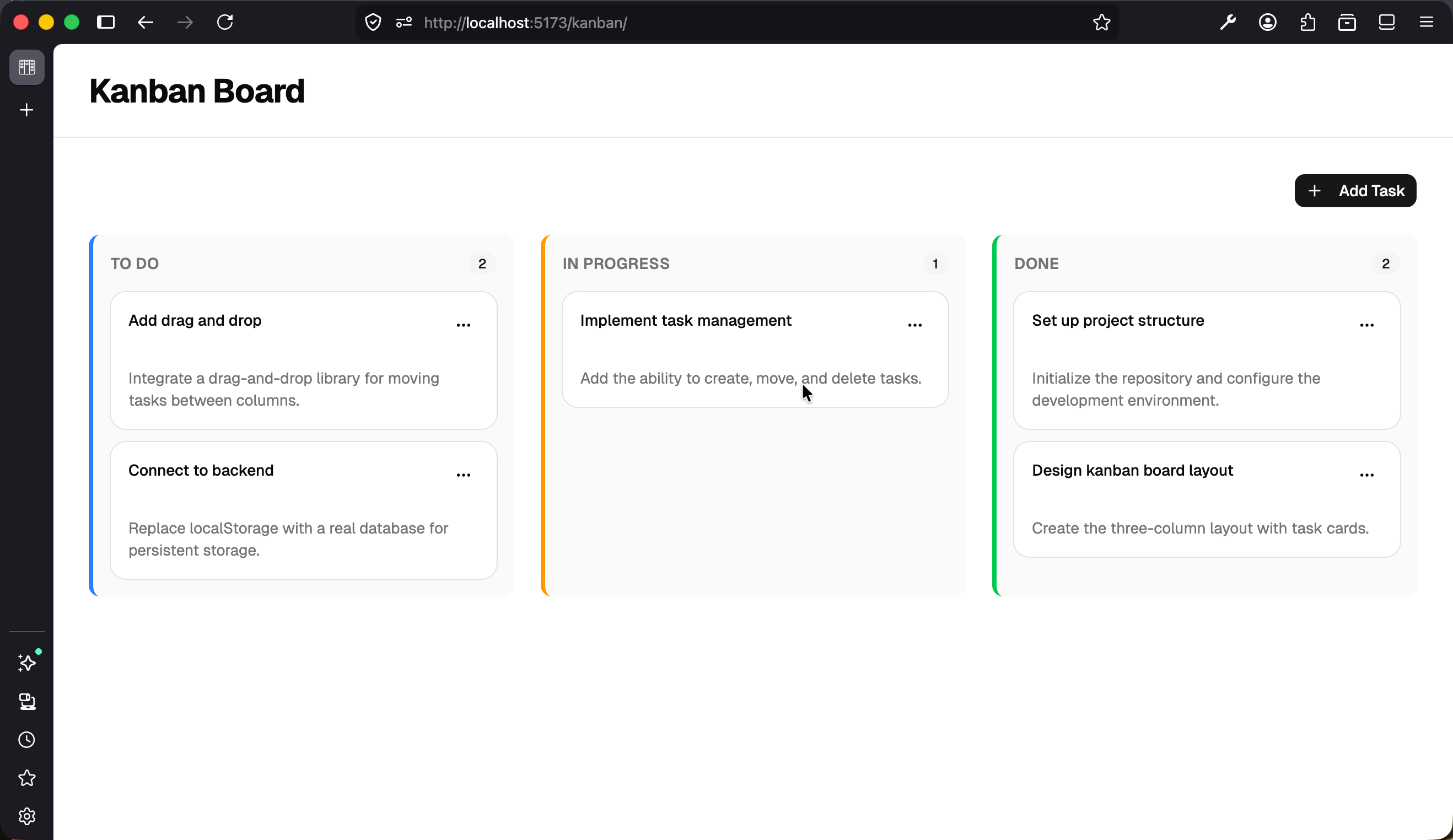
kanban-board.tsx is the main board. It reads all tasks from the store, defines the three columns, and renders a <Column /> for each one, filtering tasks by status:
const tasks = useStore(taskStore, (state) => state);
It also renders the <AddTaskDialog /> button in the top-right corner.
column.tsx displays a single column. It receives a title, status, and filtered tasks array as props. Each column has a colored left border (blue for To Do, amber for In Progress, green for Done) and a badge showing the task count.
task-card.tsx renders an individual task. Each card has an ellipsis menu (⋯), a shadcn DropdownMenu that lets you move the task to a different column or delete it. The menu hides the item for the column the task is already in, so a task in To Do does not get a “Move to To Do” item:
{
  task.status !== "todo" && (
    <DropdownMenuItem onClick={() => moveTask(task.id, "todo")}>
      Move to To Do
    </DropdownMenuItem>
  );
}
add-task-dialog.tsx is a dialog with a form for creating new tasks. It uses controlled inputs for the title and description, calls addTask() on submit, then clears the form and closes the dialog.
How the Pieces Fit Together
Data flows from the store to the board, down through columns and task cards. Actions (add, move, delete) call store functions directly. No prop drilling is needed because TanStack Store lives outside the React tree.
Try It Out
Play with the app:
- Click “Add Task” to create a new task
- Click the ⋯ menu on a task card to move it between columns or delete it
- Refresh the page. Your changes persist because they are saved to
localStorage