Setting Up the Project
Cleaning Up the Boilerplate Code
Let’s clean up the boilerplate code that was generated by Vite. We will delete the counter.js file and the two SVG files. We will also clear the contents of main.js and style.css. Since Vite now places source files in the src directory, we will work there.
rm src/counter.js
rm src/javascript.svg
rm public/vite.svg
echo "" > src/main.js
echo "" > src/style.css
Move the favicon.png file (from the template) into the public folder:
mv favicon.png public/
Setting Up main.js
We will import the CSS file in src/main.js and include some sample code to display “Hello World!” in the browser.
import "./style.css";

const app = document.getElementById("app");
app.innerHTML = `<div>Hello World!</div>`;
Next, we will update the index.html file to reflect the changes. We will link to our favicon and change the title of the page to “ToDo App”. We will also update the script tag to point to the main.js file in the src directory.
<!doctype html>
<html lang="en">
  <head>
    <meta charset="UTF-8" />
    <link rel="icon" type="image/png" href="/favicon.png" />
    <meta name="viewport" content="width=device-width, initial-scale=1.0" />
    <title>ToDo App</title>
  </head>
  <body>
    <div id="app"></div>
    <script type="module" src="/src/main.js"></script>
  </body>
</html>
Run the app with the following command.
pnpm dev
Then point your browser (Firefox Developer Edition) to http://localhost:5173/ to view the app.
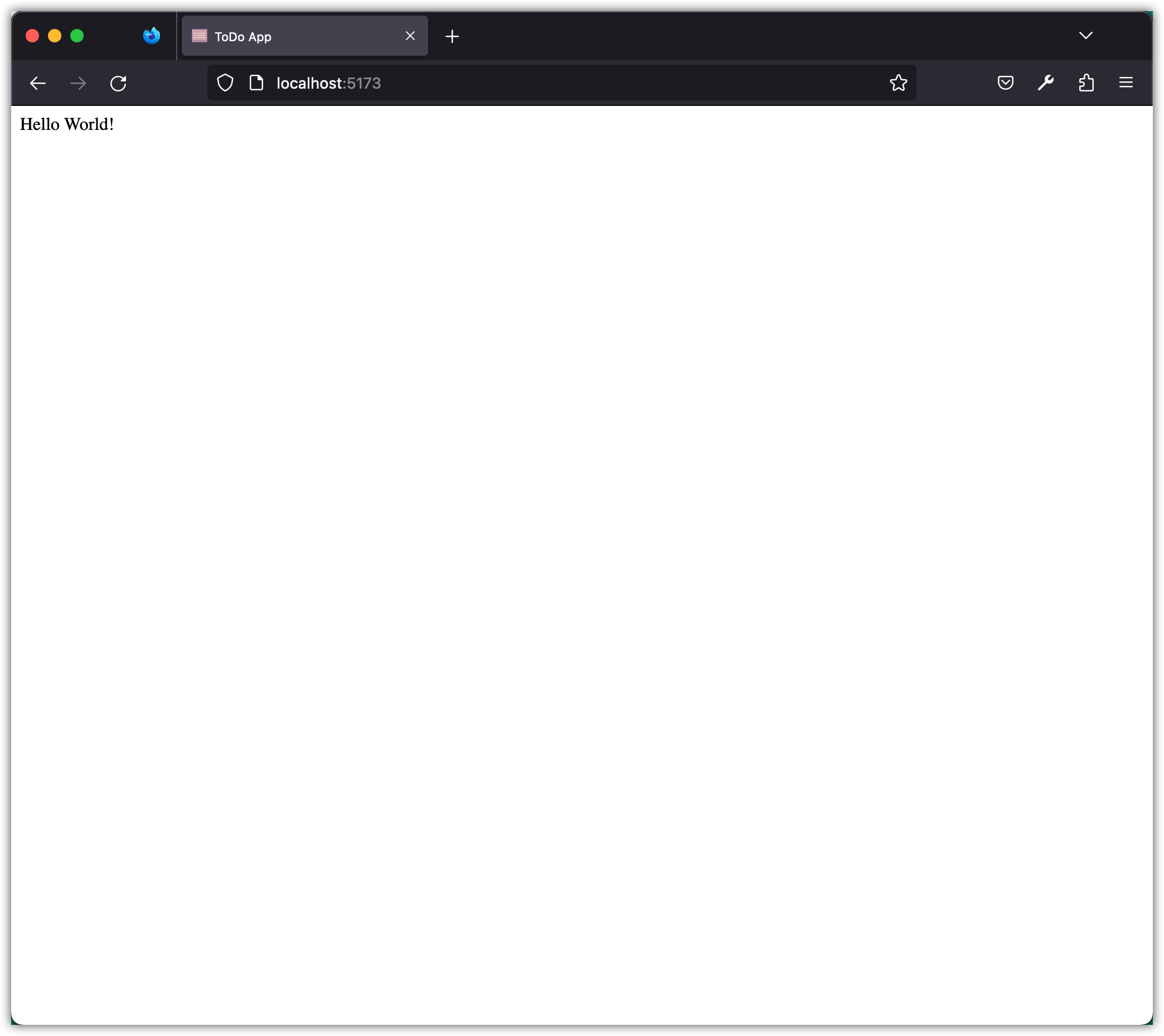
Aside: In this section, JavaScript adds style and HTML elements to the index.html file. The index.html file itself only contains a single div element with an id of app. So JavaScript can change both the content and the appearance of a page while the page is running.
Installing Tailwind CSS
Next, we will install Tailwind CSS. We will use pnpm to install it as a development dependency. Tailwind CSS v4 includes a first-party Vite plugin.
pnpm install -D tailwindcss @tailwindcss/vite
Tailwind CSS is a utility-first CSS framework. It gives you pre-built CSS classes for common UI patterns such as margins, paddings, and typography. Without it, you end up writing the same CSS rules over and over. With it, you combine the utility classes to get the styles you want.
Tailwind CSS has a few advantages over writing plain CSS files. You do not have to write custom CSS for every UI element, which saves time and effort. The set of classes is standardized, so designs stay consistent across projects. The CSS file stays smaller, because only the styles you actually used are included rather than a large set of rules that may never be applied. Responsive design is easier, because Tailwind CSS has responsive utility classes built in. And you can add to or modify the existing classes when you need something they do not cover.
Traditional CSS frameworks like Bootstrap give you pre-built components and styles. tailwindcss gives you utility classes instead, and you build your own designs out of them. That gives you more flexibility and control over how the application looks, and the codebase stays consistent and maintainable.
After installing Tailwind CSS, we need to configure Vite to use the Tailwind plugin. Create a vite.config.js file in the project root with the following content:
import { defineConfig } from "vite";
import tailwindcss from "@tailwindcss/vite";

export default defineConfig({
  plugins: [tailwindcss()],
});
Next, we will include Tailwind CSS in our stylesheet. Add the following line to the src/style.css file:
@import "tailwindcss";
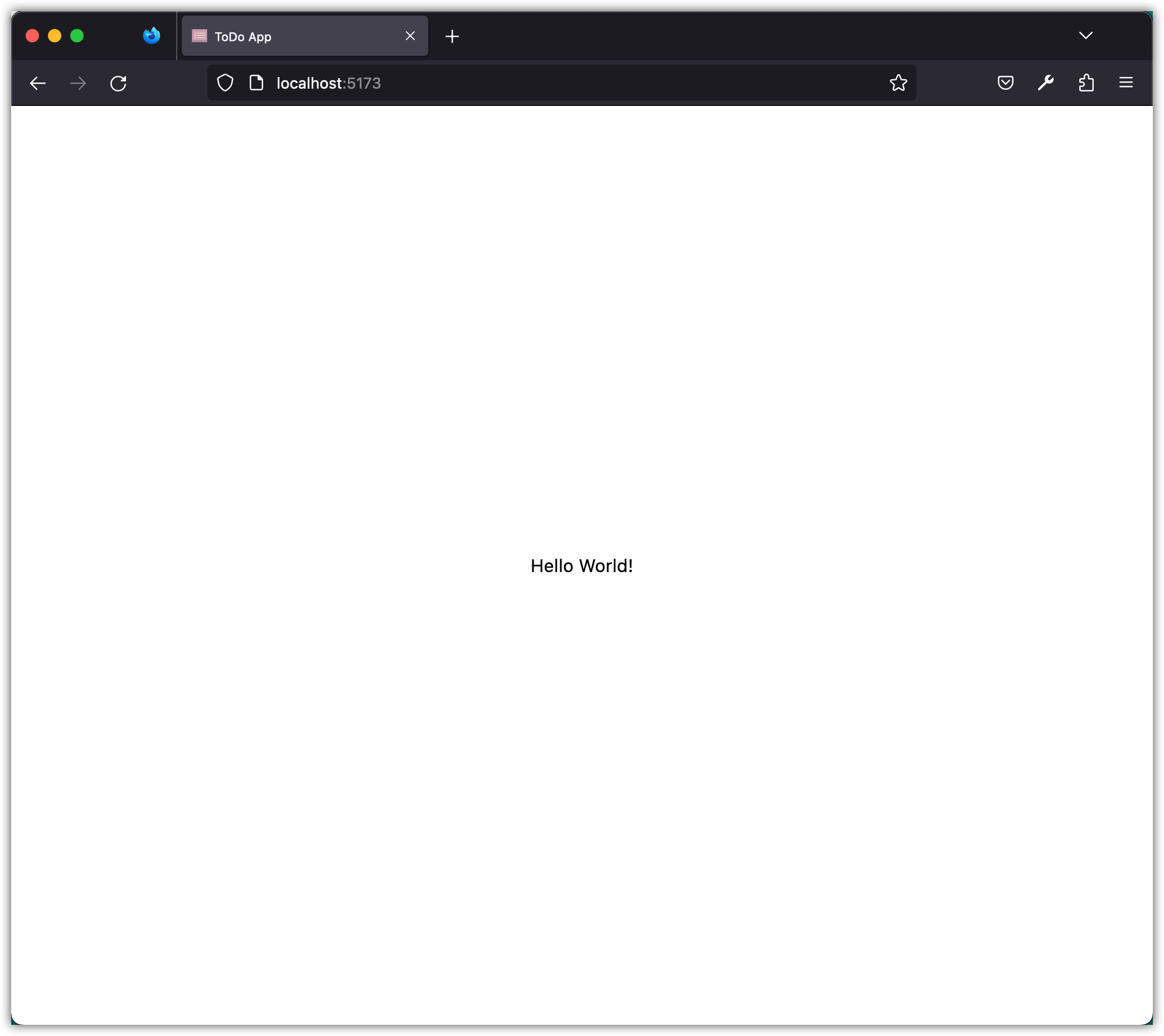
To check that the Tailwind CSS setup applies styles, update the src/main.js as follows:
import "./style.css";

const app = document.getElementById("app");
app.innerHTML = `<div class="flex items-center justify-center h-screen">
  <div>Hello World!</div>
</div>`;
Run the app and observe the changes.
Installing Prettier
Next, we will install Prettier as a development dependency.
pnpm install --save-dev --save-exact prettier
Prettier is a code formatter. It formats your code according to a set of rules, and it works with many programming languages, including JavaScript, CSS, and HTML. Without a formatter, coding style drifts from file to file, and inconsistent style makes code harder to read and maintain. Prettier works with most code editors and build tools, so the formatting can happen automatically during development and deployment.
Then, we will create a .prettierrc.json file in the root of our project to configure Prettier.
{
  "semi": true,
  "trailingComma": "all",
  "singleQuote": false,
  "printWidth": 80,
  "tabWidth": 2,
  "endOfLine": "auto"
}
These Prettier configurations determine how Prettier formats the code.
semi: determines whether to use semicolons at the end of statements.trailingComma: determines whether to include a trailing comma after the last element in an array or object.singleQuote: determines whether to use single quotes or double quotes for strings.printWidth: determines the maximum line length before Prettier wraps the code to a new line.tabWidth: determines the number of spaces to use for indentation.endOfLine: determines the type of line ending to use for the file.
Next, create a .prettierignore file to let Prettier and editors know which files not to format.
dist
When we use Vite to build the site, it creates the build artifacts in the dist folder. We have added the dist folder in the .prettierignore file to avoid formatting it.
Finally, add this command to the scripts section of the package.json file:
"format": "prettier --write \"src/**/*.js\" --config \".prettierrc.json\""
Now you can run Prettier from the terminal:
pnpm format
Checkpoint: Commit your progress.
git add .
git commit -m "todos-02: Configure Tailwind CSS and Prettier"
git push