Updating the User Interface
The final step is to implement the updateUI function, which takes the location and forecast data and displays it on the page.
Implementing updateUI
Add the following updateUI function to src/main.js:
function updateUI(location, forecast) {
  document.getElementById("name").innerText = location.name;
  document.getElementById("condition").innerText = forecast.description;
  document.getElementById("temperature").innerHTML = `${forecast.temperature} ℃`;
}
The first two lines use innerText to set plain text content for the city name and weather description. The last line uses innerHTML to set the temperature value along with the Celsius symbol (℃), which is an HTML entity.
Testing the Complete App
Try the application by entering “Baltimore” as the city:
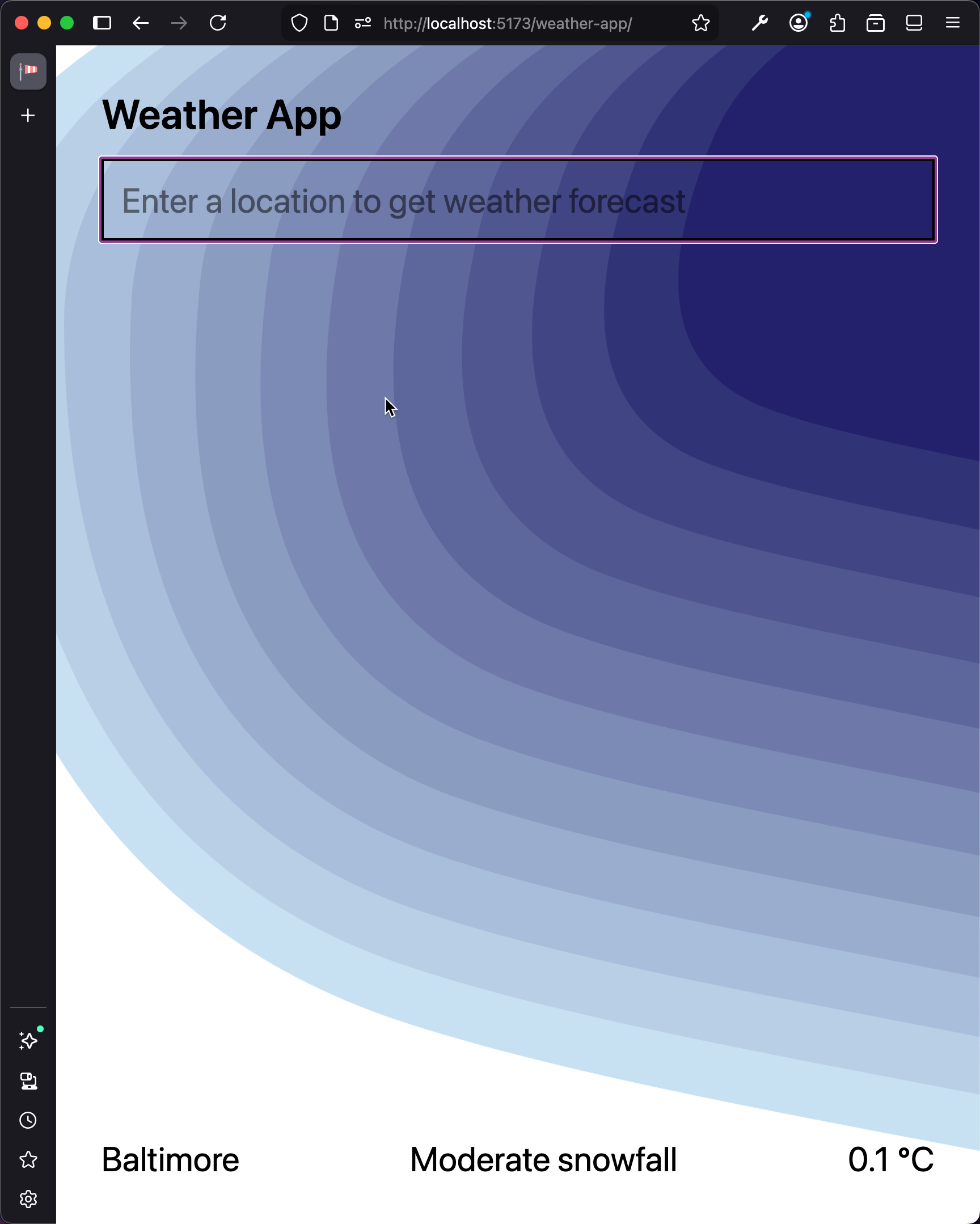
The app now searches for a city, retrieves its coordinates from the Open-Meteo Geocoding API, fetches the current weather conditions from the Forecast API, and displays the city name, weather description, and temperature on the page.
Checkpoint: Commit your progress.
git add .
git commit -m "weather-03: Implement updateUI and complete the app"
git push