Sign In to Copilot in VS Code
Current versions of VS Code ship Copilot bundled. You do not need to install anything from the Marketplace. You do need to sign in with your GitHub account, so that VS Code knows which Copilot subscription to use (Free, Student, Pro, or Pro+).
Find the Copilot Status-Bar Icon
Open VS Code and look at the bottom-right corner of the window. At the far right of the status bar you should see a small Copilot icon. If the icon has a slash through it or a small warning dot, Copilot is installed but not signed in.
Sign In
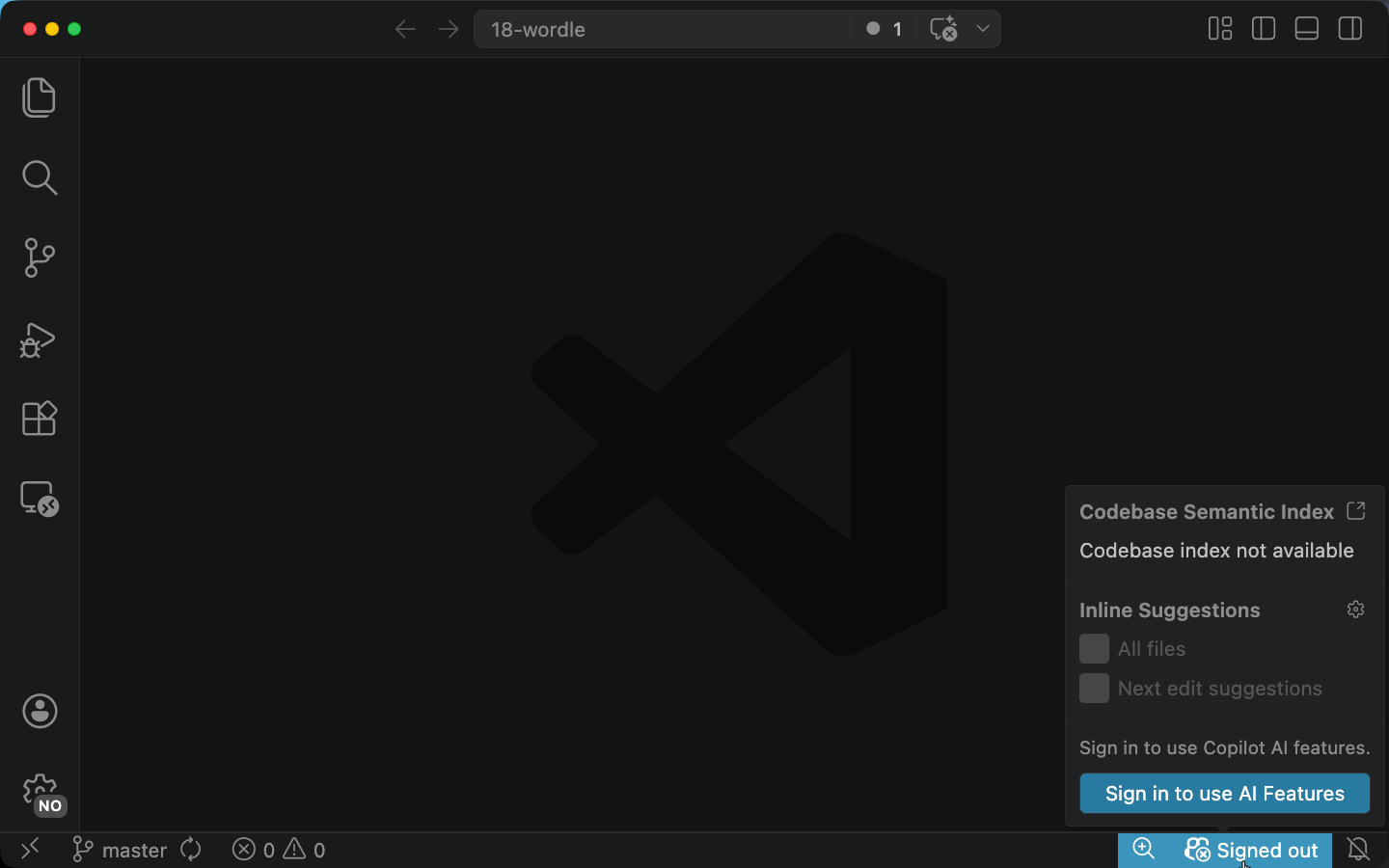
Hover the Copilot icon and click Use AI Features. VS Code opens your browser, GitHub prompts you to authorize the connection, and then the browser returns you to VS Code.
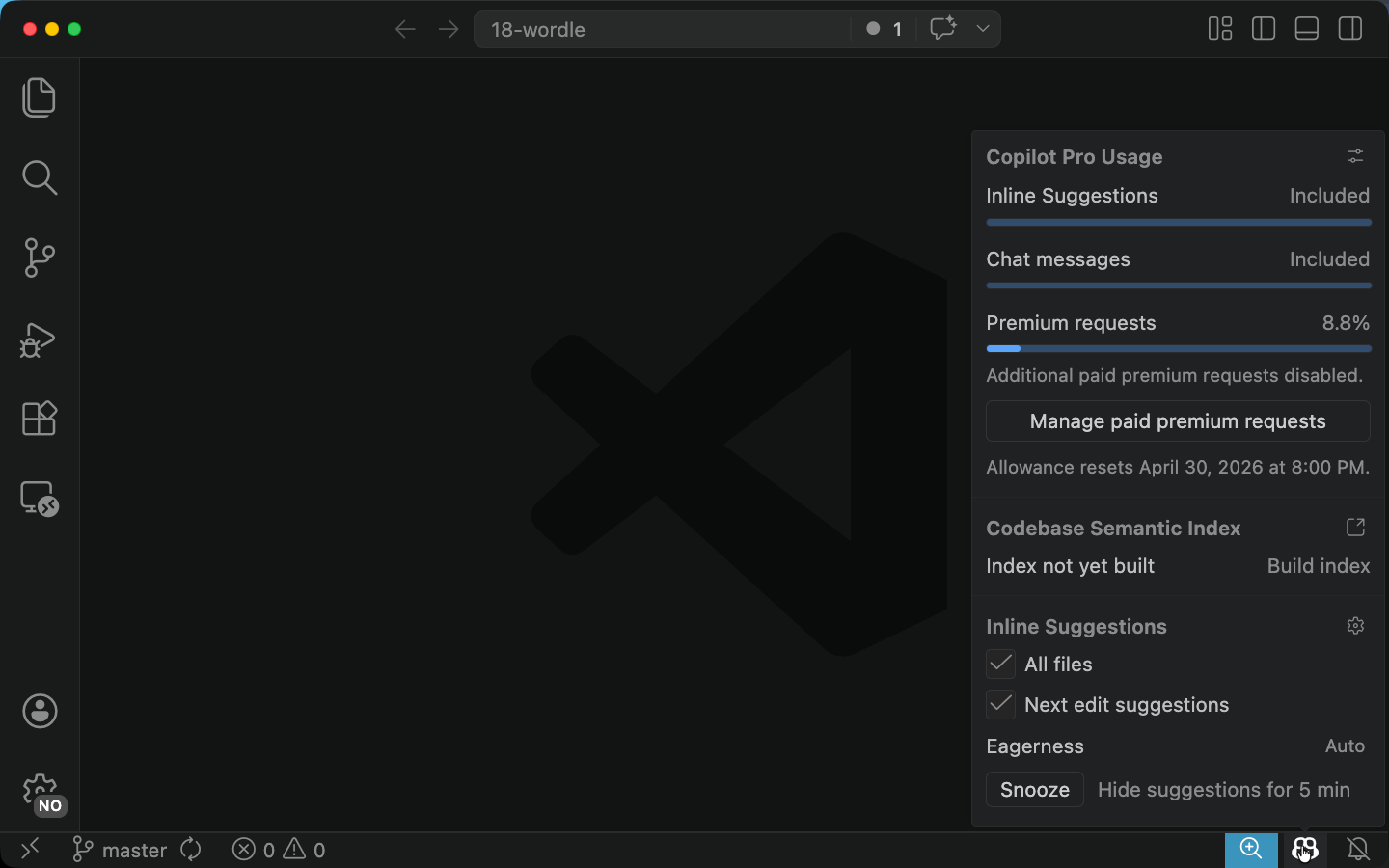
When you return, the slash or warning on the icon goes away. Hover it again and you will see a tooltip with information about your usage and your subscription. If you see that, you are signed in and ready to use Copilot.
Turn Off Telemetry (Optional)
VS Code has a general telemetry setting that also governs what Copilot sends back for usage analytics. The default on the Free tier is enabled. If you would rather turn it off:
-
Open the Command Palette with
Cmd+Shift+P(macOS) orCtrl+Shift+P(Windows/Linux) -
Type
Preferences: Open User Settings (JSON)and press Enter -
Add or update this key in the JSON:
{ "telemetry.telemetryLevel": "off" } -
Save the file.
This disables telemetry across VS Code, which includes Copilot. Set it back to "all" (or remove the key) to re-enable.